WooCommerce — PayFast Plugin
Accept PayFast payments in your WooCommerce store using a ready-to-install plugin.
This guide walks you through finding your PayFast merchant details, enabling the gateway in WooCommerce, and testing your checkout.
What you’ll need
Before you start, make sure you have:
-
A PayFast merchant account (sandbox or live)
-
Access to your PayFast dashboard
-
Admin access to your WordPress/WooCommerce site
-
Your Merchant ID, Merchant Key, and Security Passphrase
Step 1: Find your PayFast merchant details
-
Log in to your PayFast Dashboard.
-
Go to Settings → Developer Settings.
-
Copy the following values:
-
Merchant ID
-
Merchant Key
-
-
Add (or copy) your Security Passphrase.
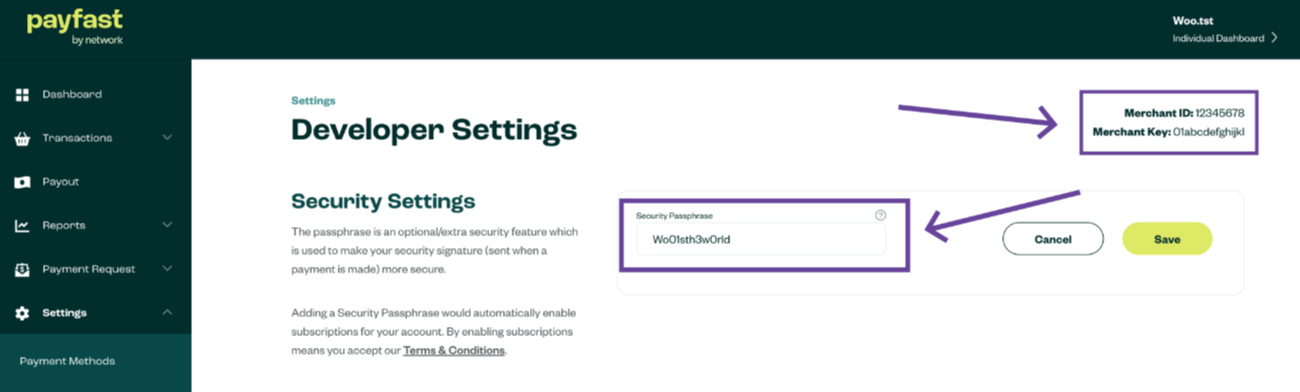
Tip: Keep this browser tab open—you’ll paste these values into WooCommerce in the next step.
Step 2: Enable PayFast in WooCommerce
-
In WordPress, go to WooCommerce → Settings → Payments.
-
Find PayFast in the list of payment methods.
-
Toggle Enabled on.
-
Select Set up to open the PayFast settings.
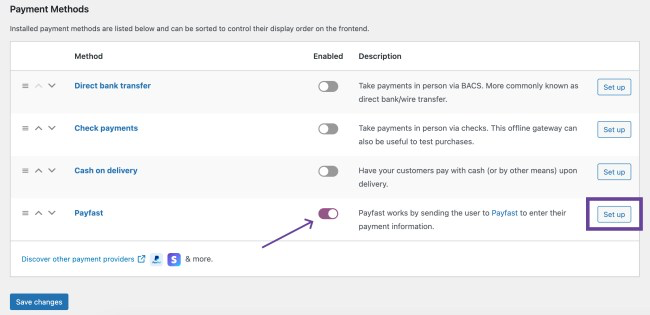
Step 3: Configure the PayFast settings
In the PayFast settings panel, complete the fields below:
Required fields
-
Merchant ID — from your PayFast Dashboard
-
Merchant Key — from your PayFast Dashboard
-
Passphrase — the security passphrase you set in PayFast
Recommended settings
-
Title / Description (optional)
Shown to customers at checkout (e.g., “Pay with PayFast”). -
Enable Logging (recommended)
Helps with troubleshooting and support.
Sandbox vs Live
- PayFast Sandbox
Enable this if you’re still testing and not ready to accept live payments.
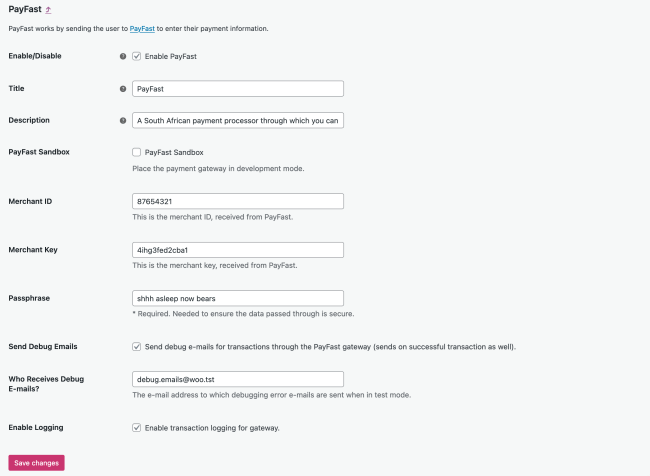
- Click Save changes.
Step 4: Test a payment
-
Ensure PayFast Sandbox is enabled (if you’re testing).
-
Open your store in a private/incognito window.
-
Add an item to your cart and proceed to checkout.
-
Select PayFast as your payment method and complete the payment flow.
Testing tip
If you’re testing payments, use a different email address from the one linked to your PayFast merchant account.
Troubleshooting
PayFast doesn’t appear at checkout
-
Confirm PayFast is Enabled under WooCommerce → Settings → Payments.
-
Ensure your store currency and WooCommerce configuration are complete.
-
Confirm you saved changes in the PayFast settings.
Payment fails or redirects incorrectly
-
Double-check Merchant ID and Merchant Key.
-
Confirm your Passphrase matches exactly (including spaces/capitalisation).
-
Enable Logging and check the logs:
-
WooCommerce → Status → Logs
-
Look for PayFast-related entries.
-
Need help?
If you contact support, include:
-
Your WooCommerce version
-
Your PayFast plugin version
-
Relevant log entries (remove any sensitive data)
Next steps
-
Go live: disable Sandbox mode and confirm your production credentials are in place.
-
Consider enabling email notifications and order status updates in WooCommerce.
-
Review your checkout wording (Title/Description) to improve conversion.
Updated about 1 month ago