Ecwid — PayFast Plugin
Ecwid lets you add a store to your website and social channels.
PayFast for Ecwid
By enabling PayFast as your payment processor in Ecwid, you can accept card payments and other PayFast-supported payment methods at checkout.
Before you start
Make sure you have:
- An active PayFast merchant account
- Your Merchant ID, Merchant Key, and Passphrase
- Access to your Ecwid admin dashboard
Set up PayFast in Ecwid
- Log in to your Ecwid account.
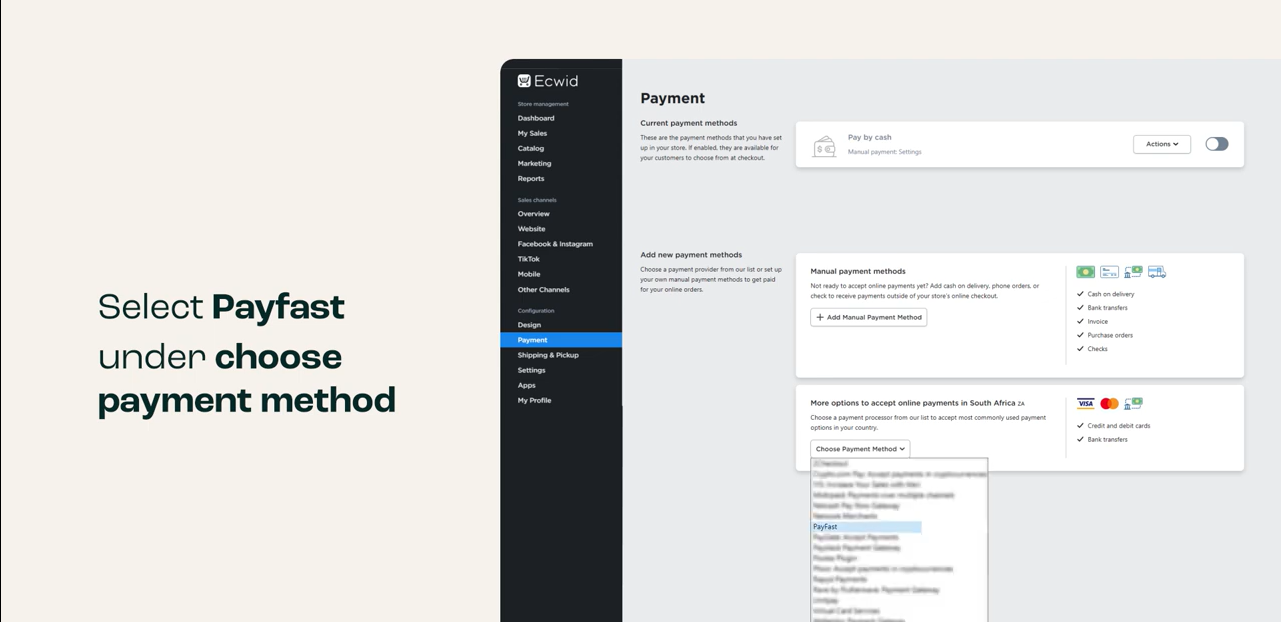
- Go to Payment.
- Next to Credit or debit cards, select Choose payment processor.
- Select Credit card: PayFast.
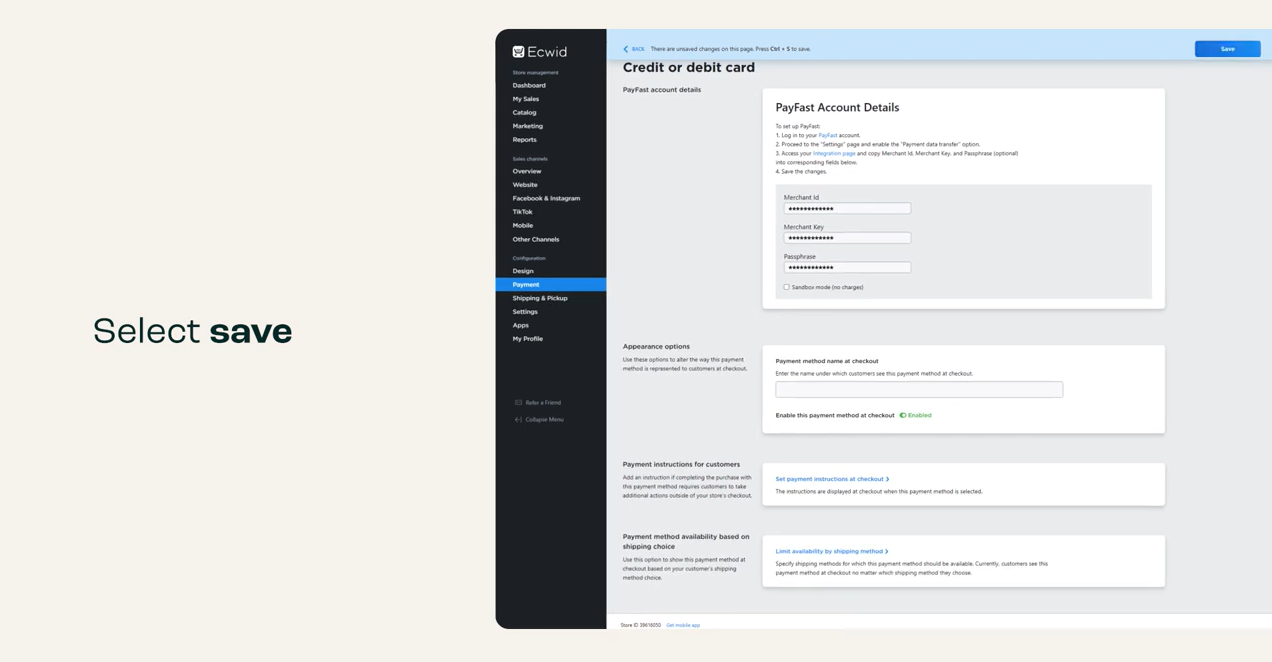
- Enter your PayFast details:
- Merchant ID
- Merchant Key
- Passphrase
- Click Save.
Watch: How to integrate Payfast with Ecwid.
Notes
- This module is developed and supported by Ecwid, so platform-specific support is handled by Ecwid.
- You must be registered with PayFast to accept payments and obtain your merchant credentials.
Plugin details
- Platform: Ecwid
- Supported by: Ecwid
- Ecwid website: https://www.ecwid.com/
- PayFast plugin page: https://payfast.io/integration/plugins/ecwid/
If you need download links (Aggregation/Gateway), use the download buttons on the PayFast plugin page above.
Troubleshooting
- Payments not showing / failing at checkout: Confirm Merchant ID/Key/Passphrase are correct and saved.
- Wrong currency: Ensure your store is configured for ZAR if you’re targeting South African customers.
- Integration help: Contact Ecwid support if the processor option isn’t available or the UI differs.
Related resources
- Payment methods supported by PayFast: (link to your “Payment Methods” page)
- PayFast account setup: (link to your “Get Started”/onboarding page)
Updated about 2 months ago